How to add Environment variables to VS Code
Table of Contents
- Overview of Environment Variables in VS Code
- User Level Environment Variables
- Environment Level Environment Variables
- Project Level Environment Variables
- Creating Environment Variables
- Sensitive Variable Masking
- Deleting Environment Variables
Overview of Environment Variables in VS Code
Datacoves injects several environment variables on your behalf. However, you may need to add additional variables to run scripts, test code etc. This doc will walk you through adding your own environment variables at the user, environment and project level. These variables are only available in your VS Code, not Airflow. For Airflow we recommend you use Airflow Variables or Datacoves Secrets
User Level
Environment variables set at the user level will only be available to the workspace environment of the individual who created them.
Step 1: Navigate to your user settings in the top right-hand corner
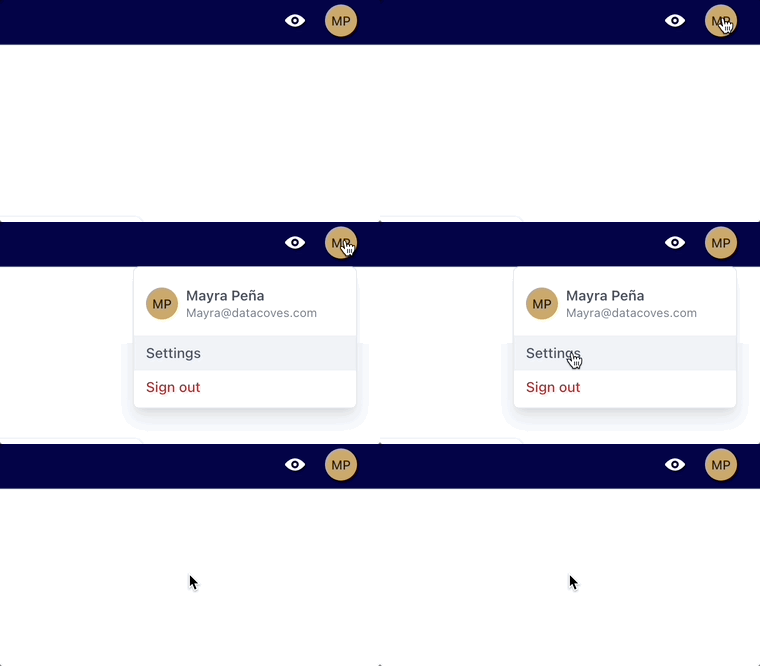
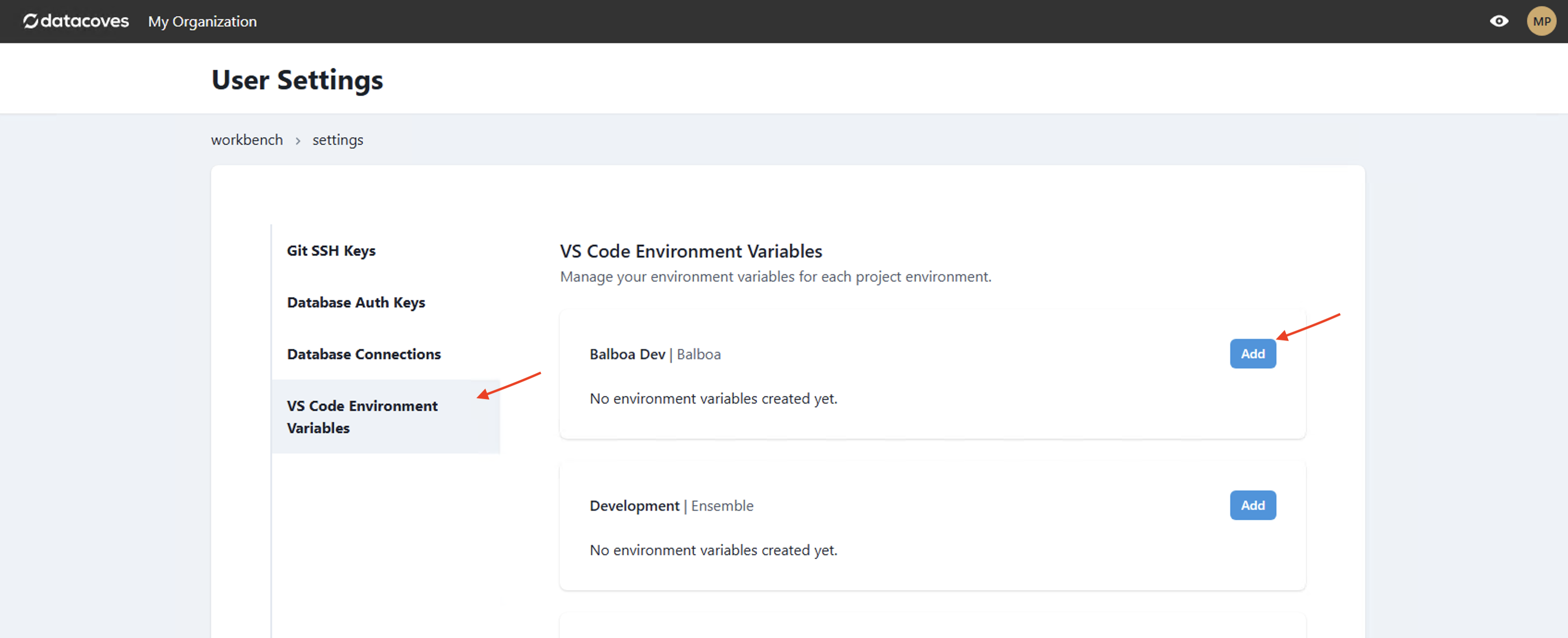
Step 2: Navigate to VS Code Environment Variables
Step 3: Select Add
Environment Level
You must have admin permissions to add variables across the project or user environments.
Environment level variables will be available to everyone with access to the environment ie) The Development Environment.
Step 1: Navigate to the environment menu
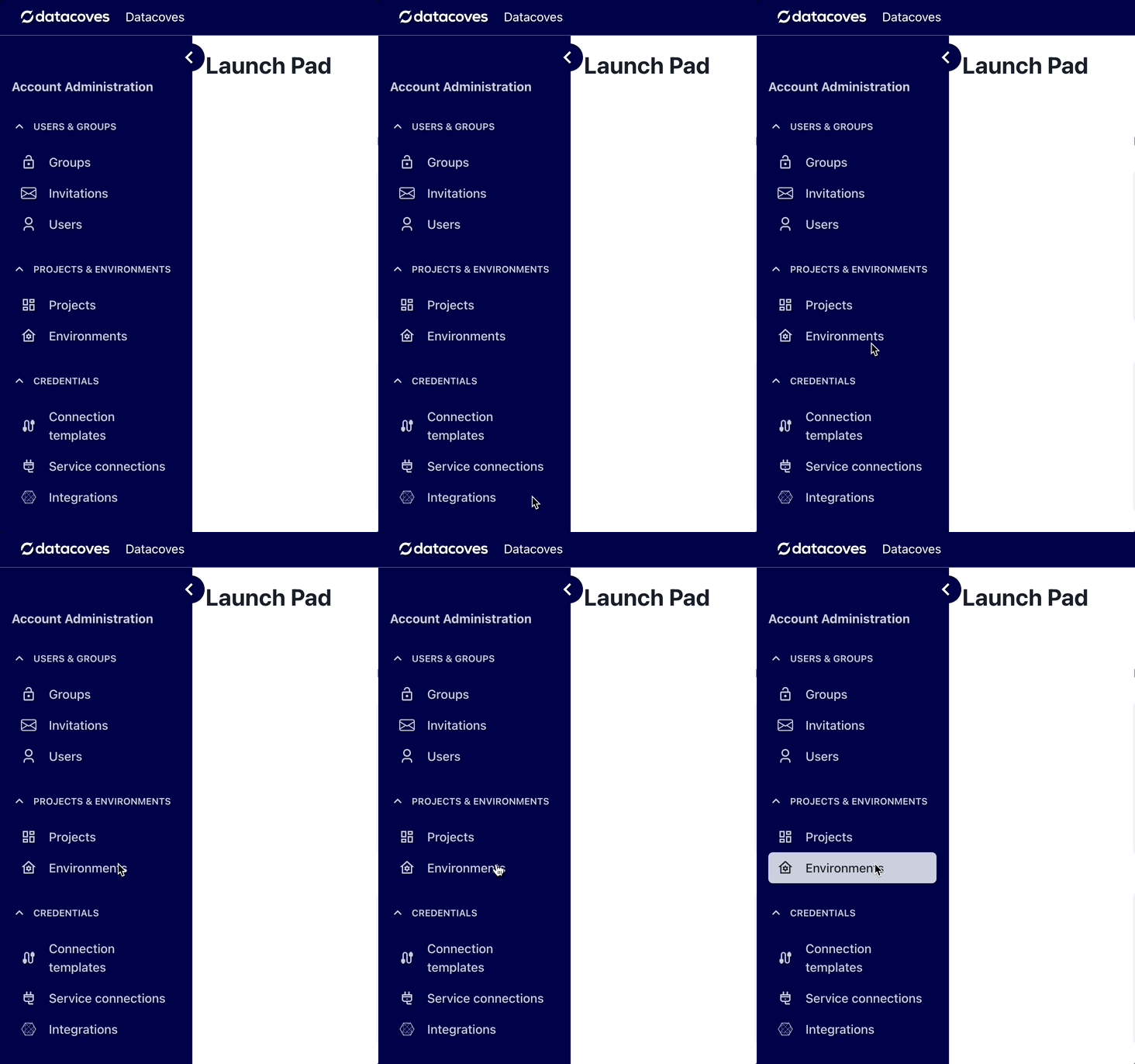
Step 2: Navigate to VS Code Environment Variables
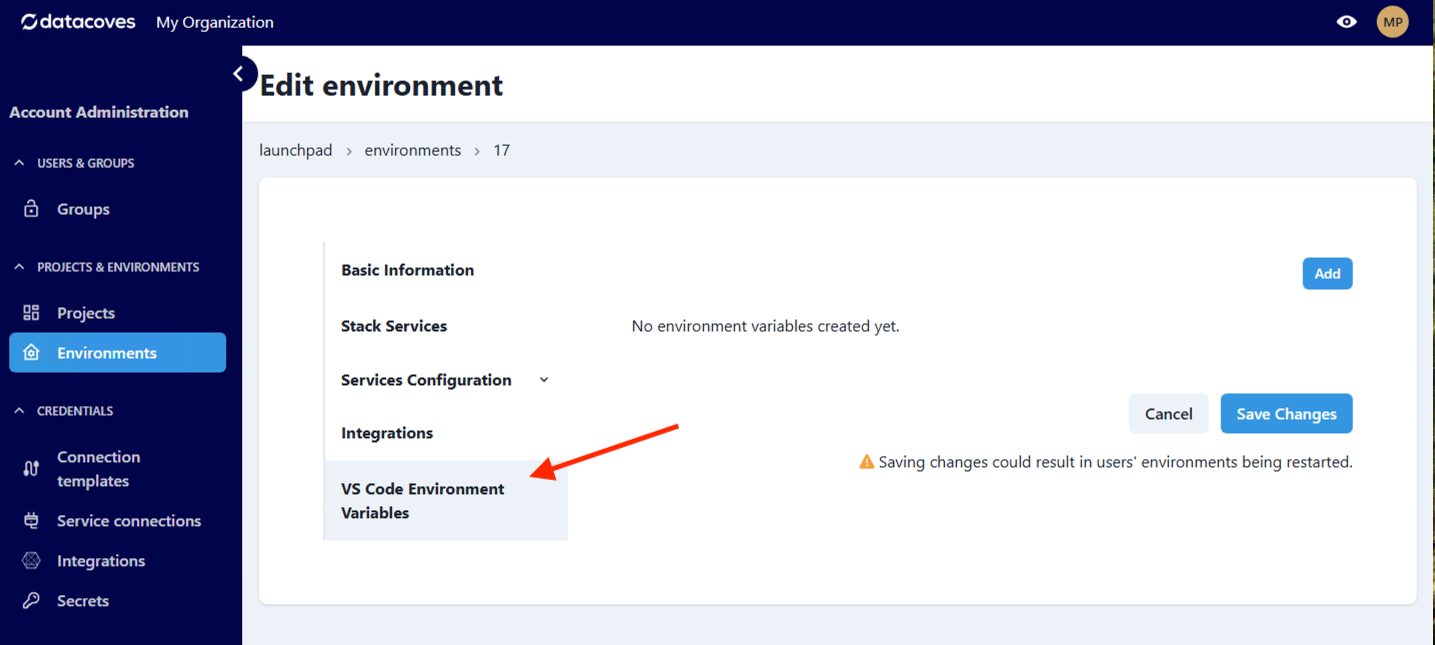
Step 3: Select Add
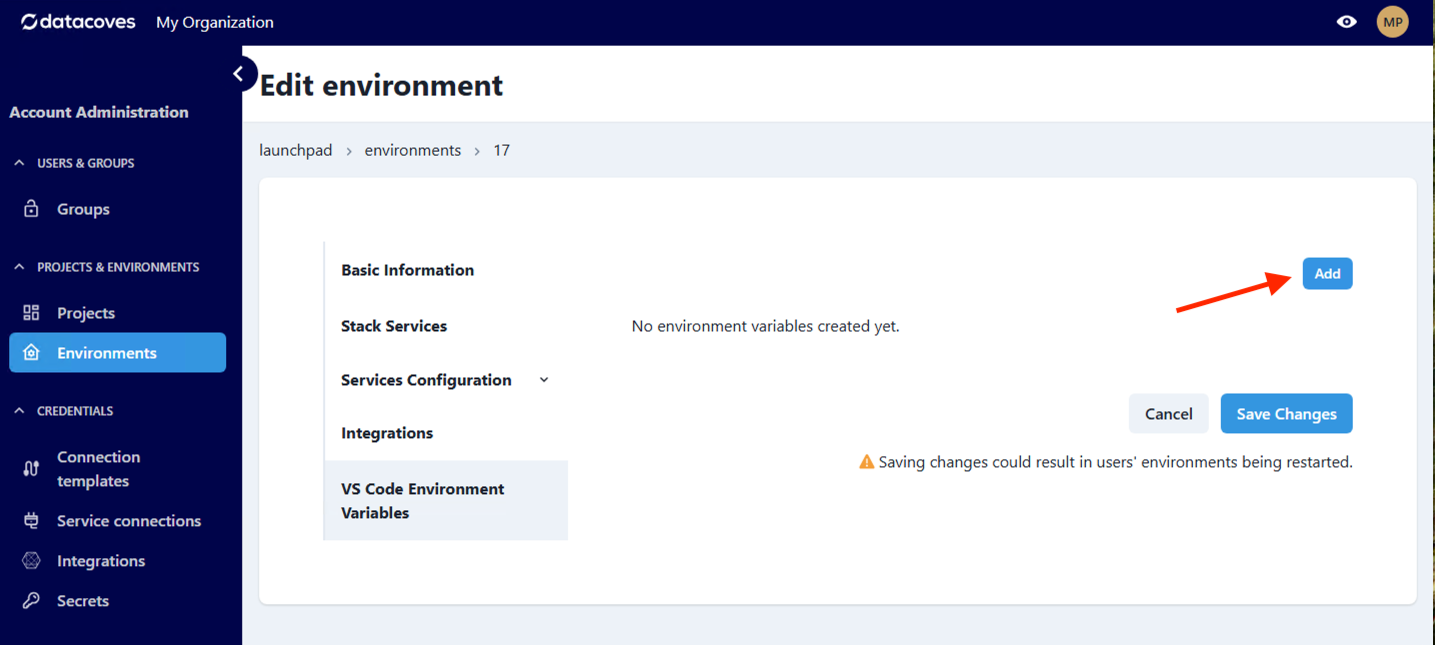
Project Level
Project level variables will be available across all environments in a project.
Step 1: Navigate to the project menu
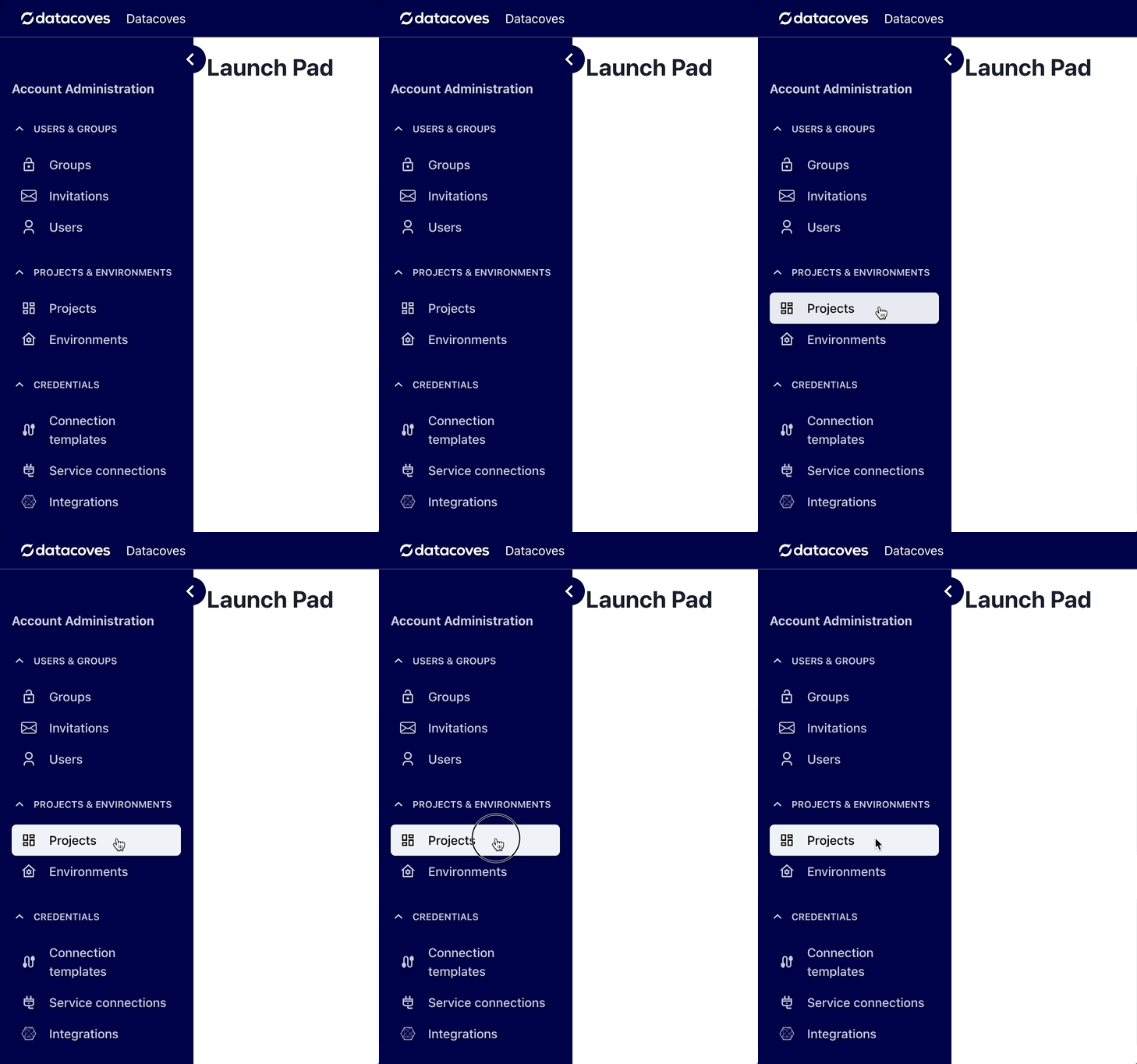
Step 2: Navigate to VS Code Environment Variables
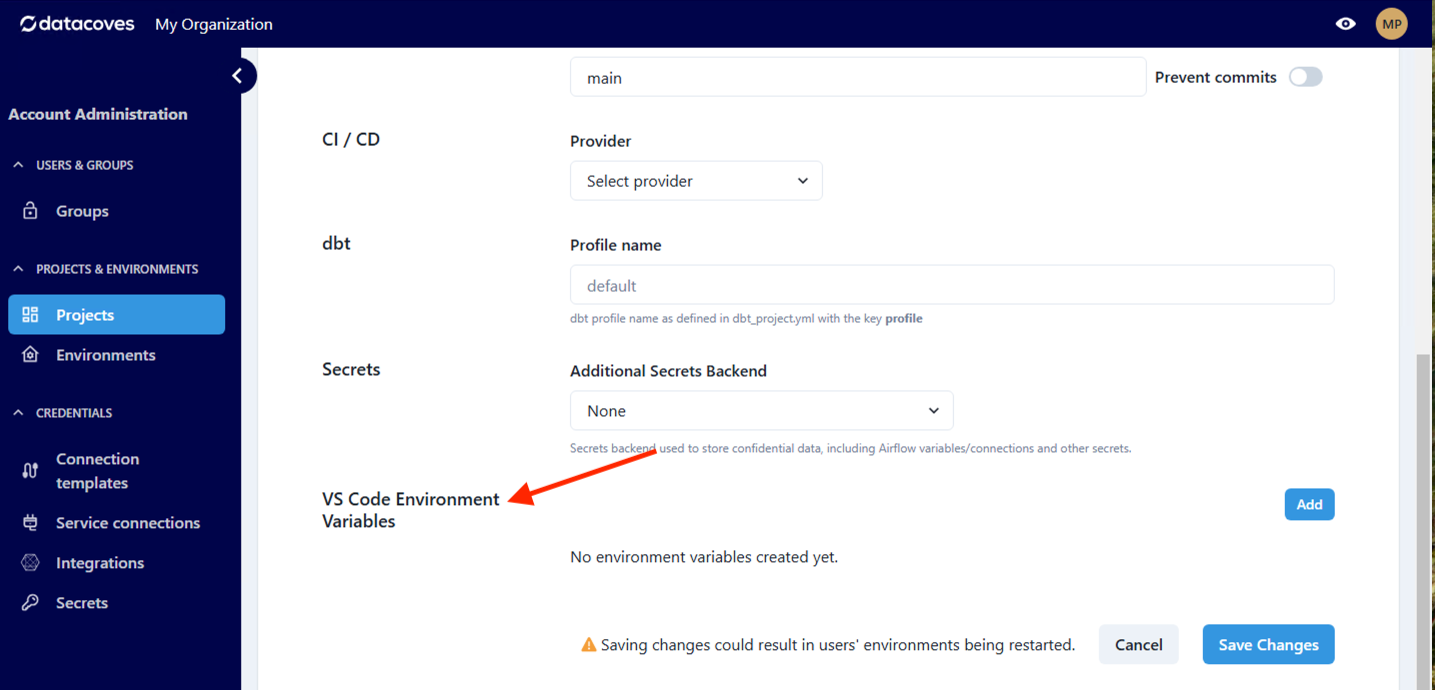
Step 3: Select Add
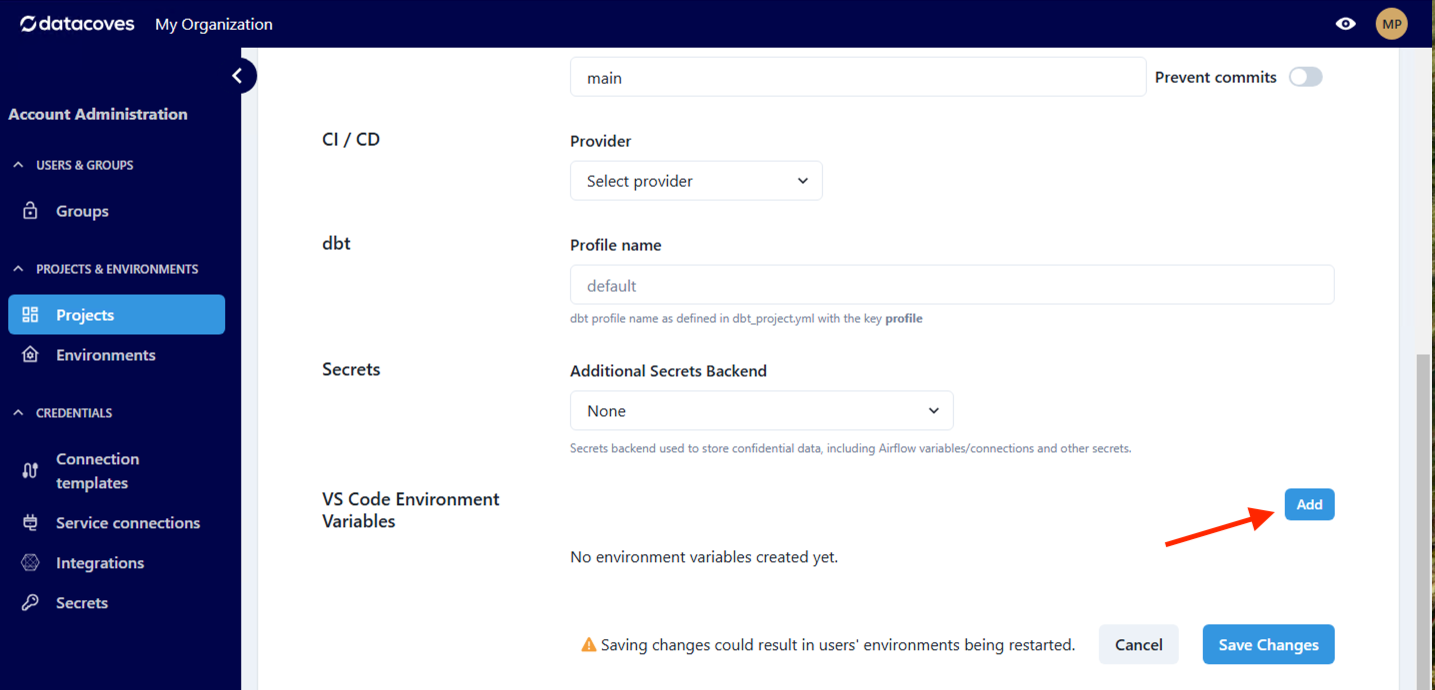
Creating variables
Creating variables is simple. Add the key following the correct format and add the desired value.
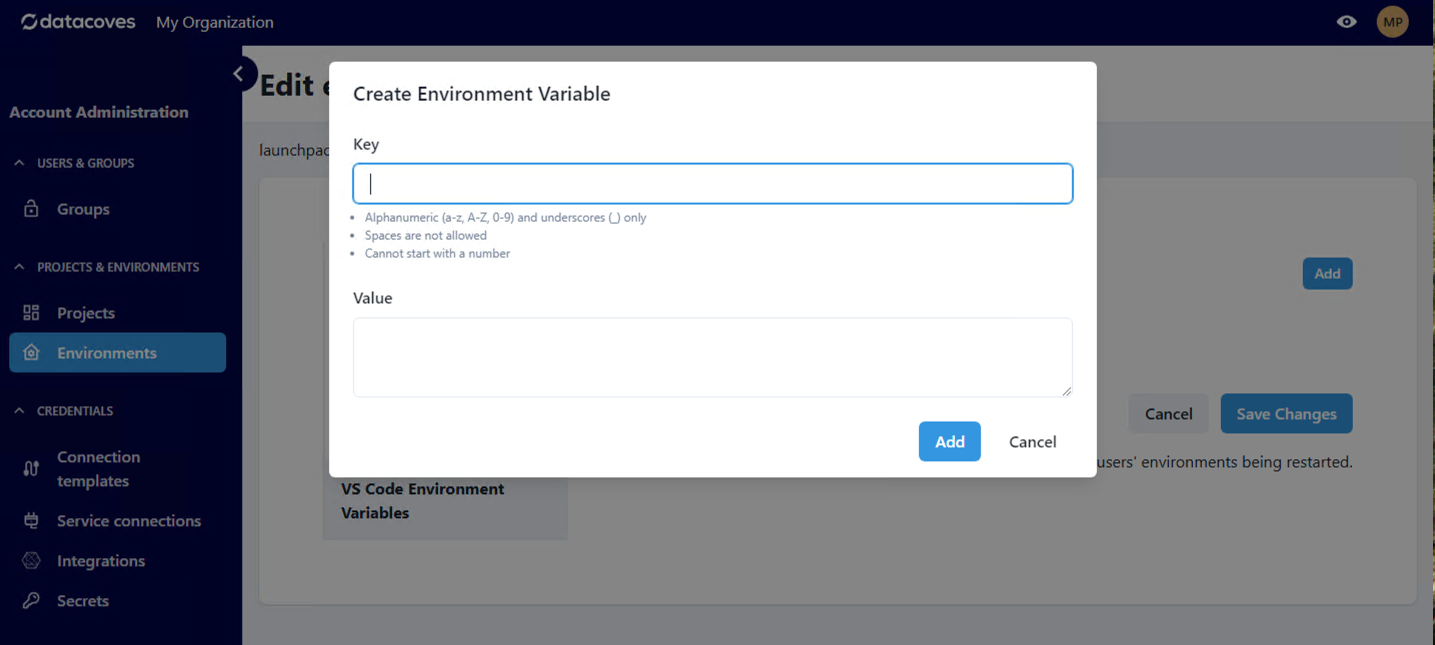
Some features read a value from an environment variable you set here. For example, the GitHub MCP
server reads a personal access token from a user-level variable named
GITHUB_PERSONAL_ACCESS_TOKEN. Its value is automatically masked because the name contains token.
Sensitive Variable Masking
Datacoves automatically masks the values of environment variables whose names contain certain keywords. This helps prevent accidental exposure of secrets in the UI.
When a variable is masked:
- The value is displayed as
***in the table - The value field is cleared when editing the variable
Masking is triggered when the variable name contains any of the following keywords (case-insensitive):
access_token, api_key, apikey, authorization, passphrase, passwd, password, private_key, secret, token
For example, MY_API_TOKEN is masked because it contains token, and DB_PASSWORD_DEV is masked because it contains password.
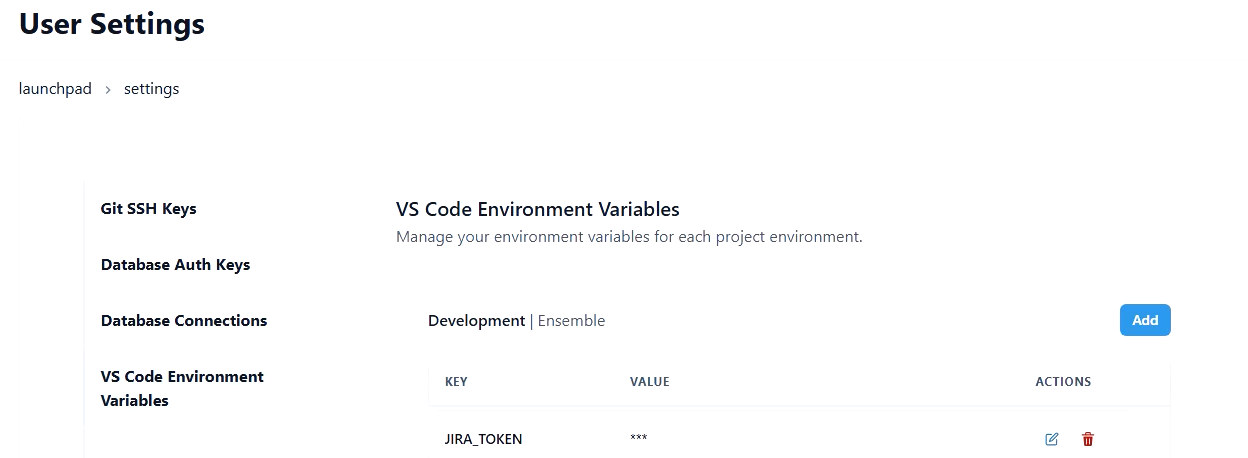
When creating variables that hold sensitive values, include one of the keywords above in the name to ensure the value is masked in the UI.
Deleting variables
Deleting variables is also simple. Simply navigate to the User, Project or Environment settings.
Step 1: Click the delete option (red trashcan)
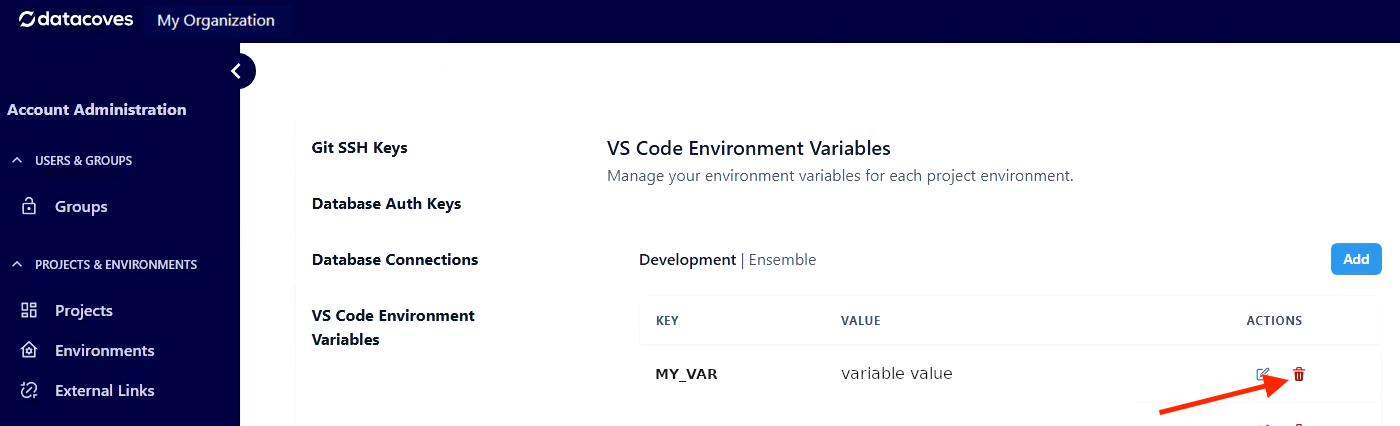
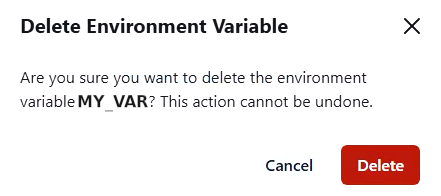
Step 2: Confirm the deletion in the popup