Authentication for Azure DevOps
Now you are ready to begin configuring your authentication method. This is the method Datacoves will use to clone your repo from Azure DevOps. You have two options:
secrets
and
certificates
.
Step 1
-
Navigate back to the tab where you created your application in the Azure Portal. You should be inside your newly created application.
-
Select the
Certificates & Secretsoption in the left navigation menu.
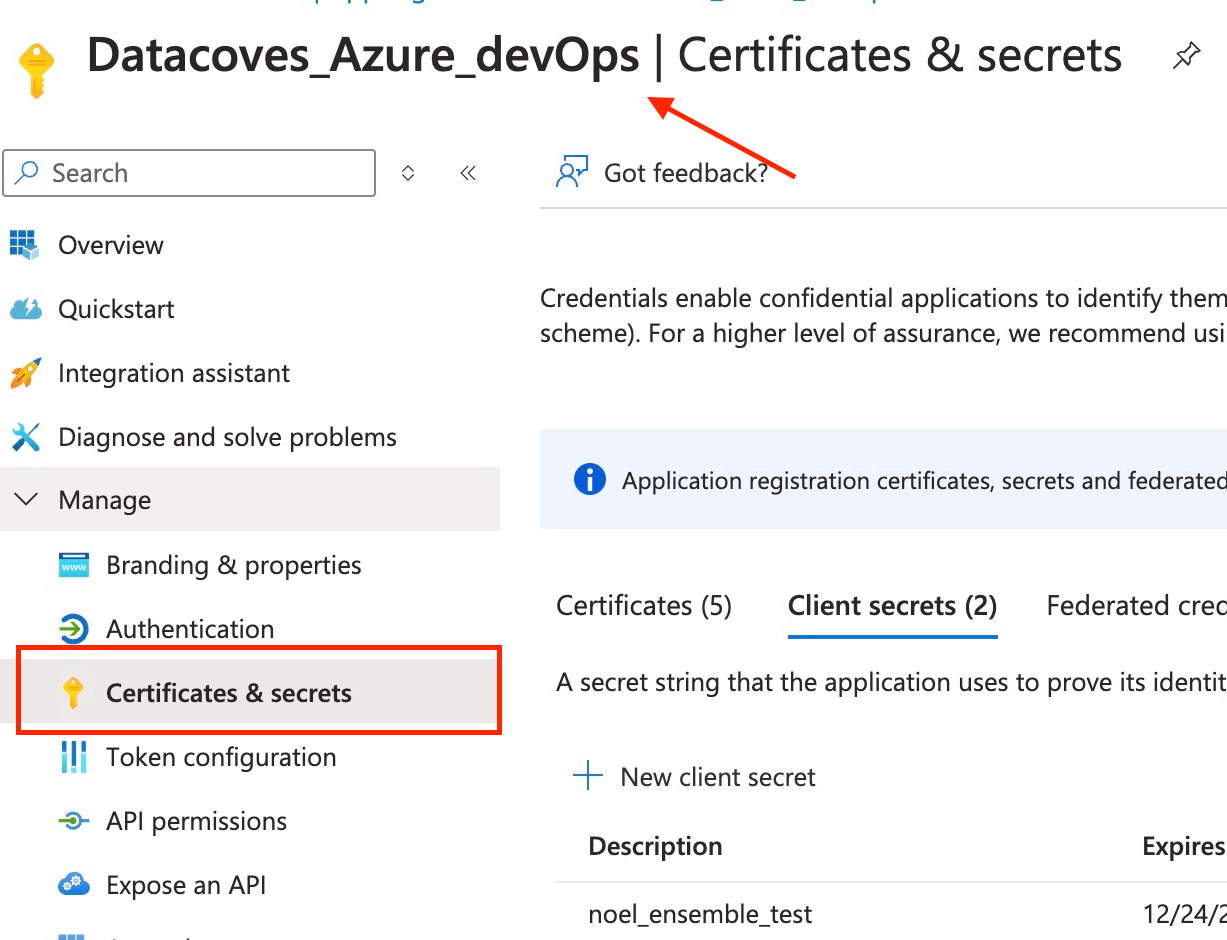
secret
or
certificate
Authentification Method
As mentioned above, you have two authentication methods available:
secrets
or
certificates
. Please select one to continue to the next steps.
Secret-Based Authentication
Secret-Based Authentication
Step 2
-
Select
Client Secretsin the top navigation menu and+ New Secret.
Step 3
- Give it a meaningful description and set your desired expiration date.
Step 4 Copy the Value onto a notepad.
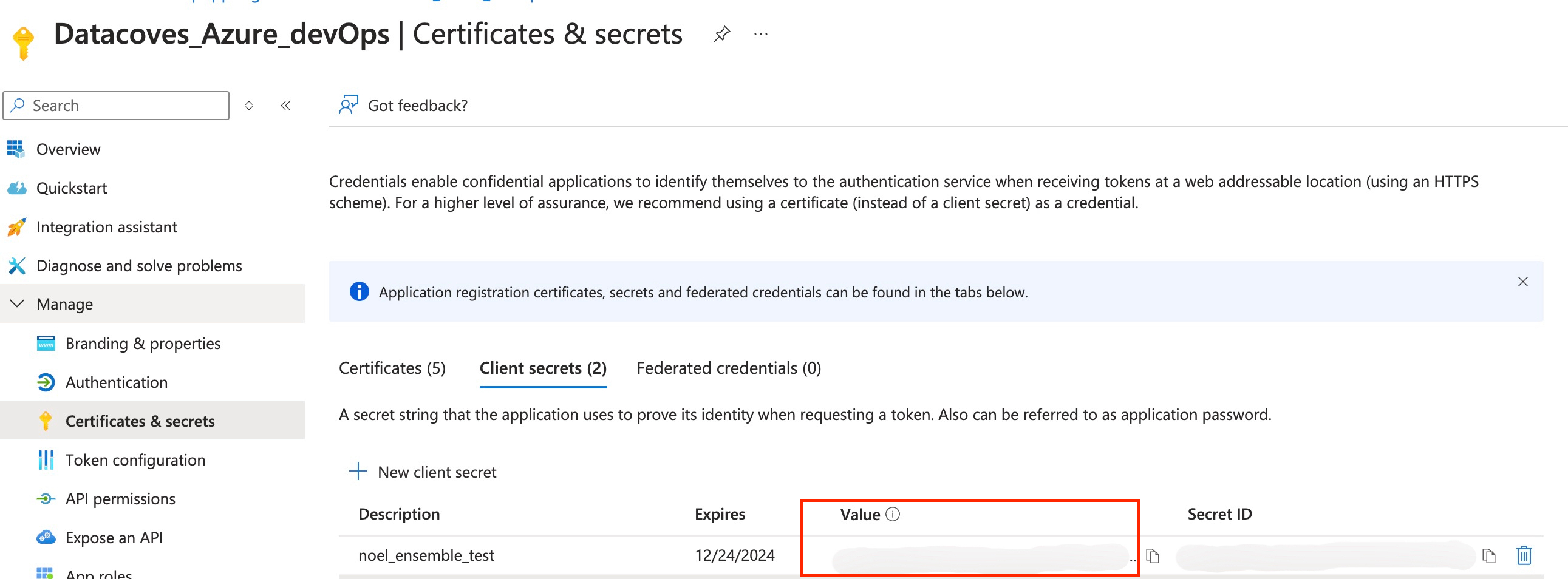
✅ Congrats, you are now ready to configure your project .
Certificate-Based Authentication
Certificate-Based Authentication
🚨 This configuration requires some back and forth between Azure DevOps and Datacoves.
Step 2
-
Select
Certificatesfrom the top navigation menu.
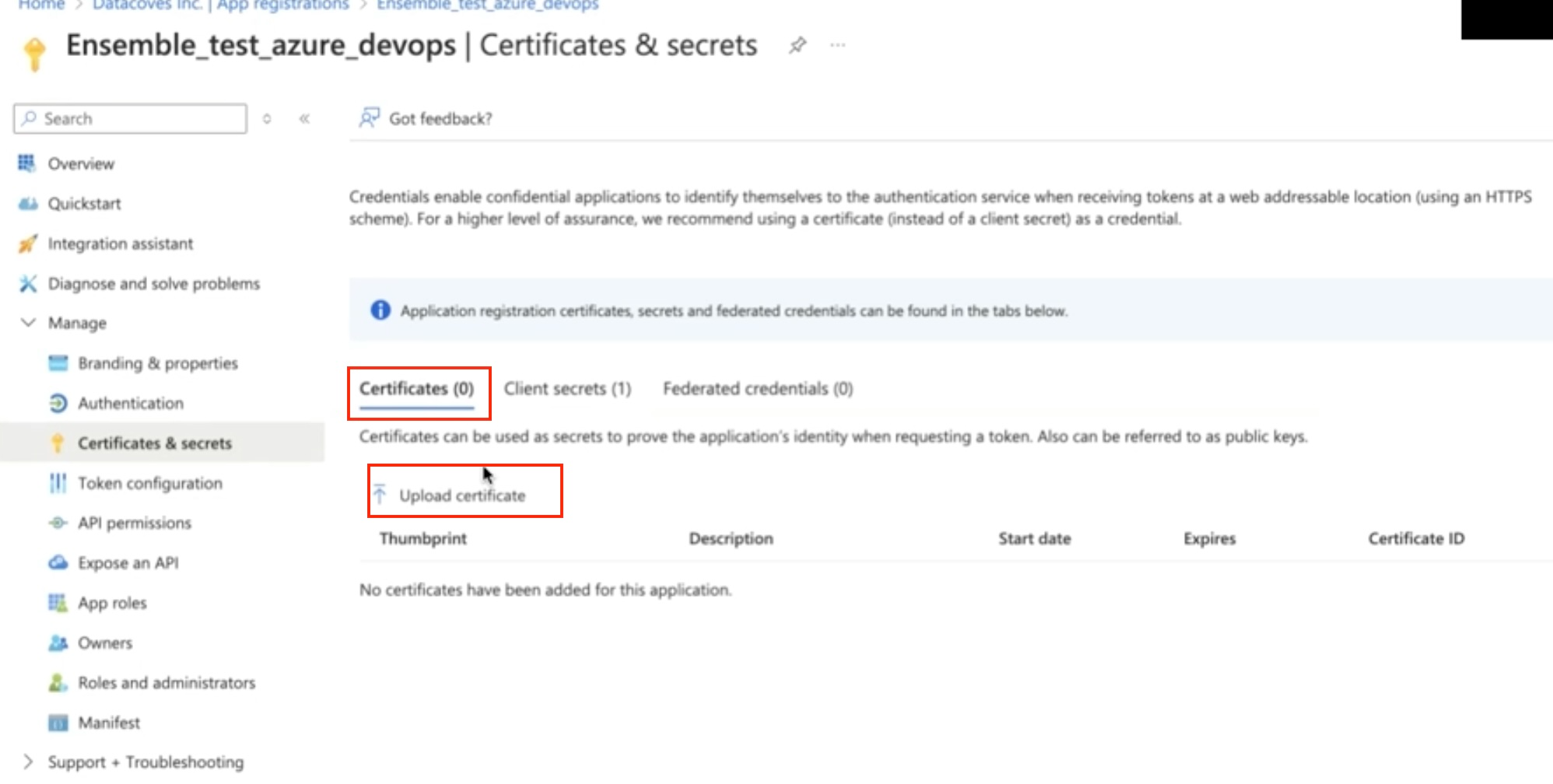
Step 3
- To generate a certificate PEM file, you will need to begin configuring your Datacoves project .
Step 4
-
Select
Azure DevOps Certificateas your Cloning Strategy.
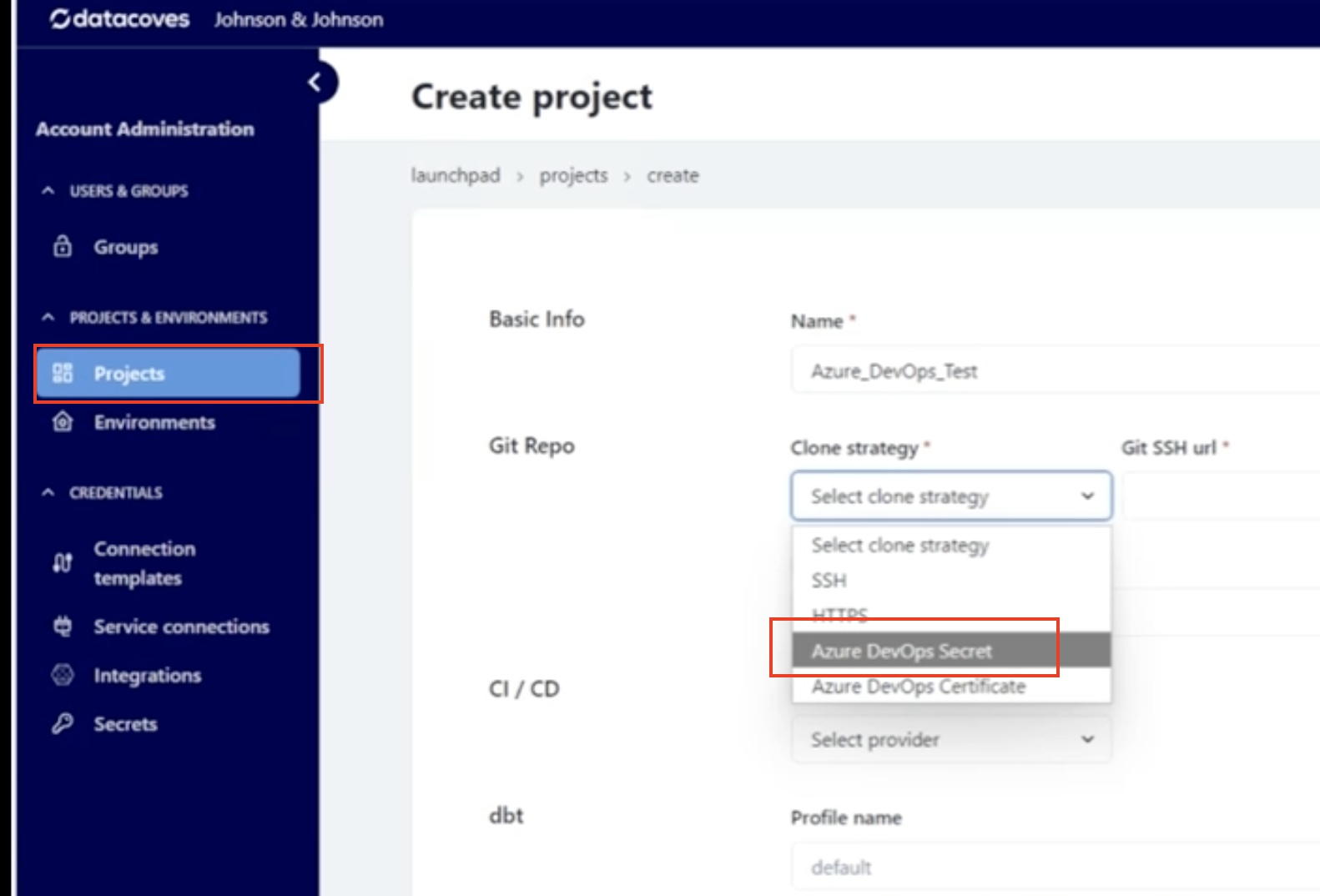
Step 5
-
Copy the certificate and save it as a plain text file on your desktop with a
.pemextensiondatacoves_cert.pem.
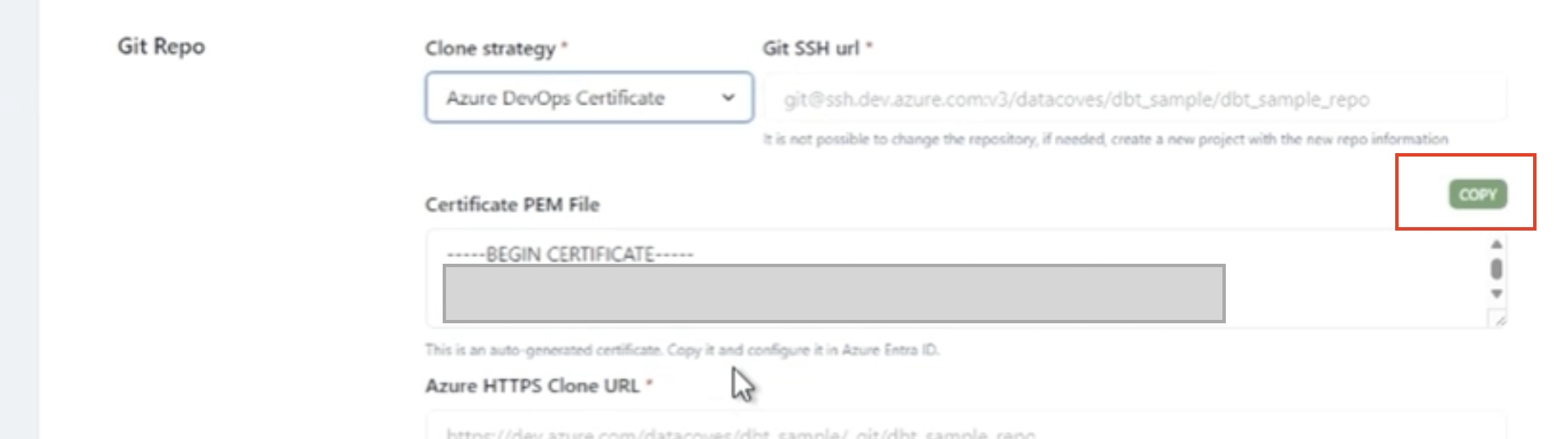
Step 6
-
Navigate back to your Azure Portal tab and select
Upload certificate. Upload the PEM file you saved in the previous step.
Step 7
-
Give it a description and select
Add.